
Yes, you can add an in-browser "see it in your room" preview to product pages without any app download. A photo-compositing widget lets shoppers upload a photo of their room, then superimposes the product on it, and you integrate it as a theme app block, an app embed block, or a small script or iframe for custom storefronts. Done properly, with privacy and performance controls in place, the result is faster buying decisions and fewer returns.
TL;DR:
- The compositing widget uses existing product photos and takes roughly 30 seconds to generate a preview, requiring no app download.
- Integration options vary from platform-specific extensions on Shopify to custom scripts or iframes for flexible control and security.
- Handling uploaded room photos requires a Data Processing Agreement, explicit consent, and proper privacy measures to comply with data protection laws like GDPR.
- To maintain page speed, implement asynchronous loading, click-to-load patterns, and sandboxed iframes, especially since the preview process adds latency.
- AI Furniture Solutions offers a ready-made widget scalable by usage with free previews, no setup fees, and a low cost of 10p per extra preview beyond plan allowances.
Table of Contents
- How in-browser photo compositing actually works
- Integration patterns for Shopify, WooCommerce, BigCommerce and custom storefronts
- Privacy, data protection and consent for uploaded room photos
- Keeping pages fast and shoppers engaged
- A step-by-step checklist to implement, test and roll out the widget
- What implementing this widget actually teaches you
- How AI Furniture Solutions helps you ship this faster
- Sources
- FAQ
How in-browser photo compositing actually works
The flow is simple from the shopper's side. They upload a photo of their room, the widget sends it to a compositing service, and within roughly 30 seconds a preview comes back showing the product placed in that room. No app, no account, no 3D scan.
What makes this different from AR or 3D visualisers is the asset pipeline. Photo compositing works from the product JPEGs a retailer already has, rather than requiring a 3D model of every SKU. That keeps onboarding lighter and avoids the asset backlog that stalls most AR rollouts.
On the technical side, three pieces usually do the work:
- A JavaScript snippet or iframe embedded on the product page, handling the upload interface
- A serverless compositing API that receives the room photo and product reference, then returns the rendered preview
- Analytics hooks that log preview starts, completions, and any resulting add-to-cart events
Retailers rarely need to build the compositing logic themselves. The integration work is mostly about where the widget sits on the page and how it talks to the rest of the stack.
Integration patterns for Shopify, WooCommerce, BigCommerce and custom storefronts
The right integration pattern depends on your platform and how much control your team wants over runtime behaviour.
- Shopify: use a theme app extension from The Meow Picks furniture collection, either an app block or an app embed block, so merchants add the widget without editing Liquid templates directly. Shopify's developer documentation confirms these extensions support deep links, which can activate a block automatically right after installation, cutting out a manual setup step.
- WooCommerce and BigCommerce: a plugin handles the simplest path, but a small embed script works just as well, and a sandboxed iframe reduces the risk of the widget's code touching anything else on the page.
- Custom storefronts: install a lightweight script that calls a serverless compositing API directly, or host the whole interaction inside an iframe. Pre-signed upload URLs protect your storage credentials and avoid exposing them in client-side code.
Each option trades ease of installation against runtime control. App blocks and embeds install fast and need little engineering time, but you depend on the platform's extension framework for behaviour. A custom script gives you more control over styling and data flow, at the cost of more setup work. Worth noting too: some platforms, including Shopify, restrict what can run on checkout pages, so the widget generally belongs on the product page itself rather than further down the funnel.
Privacy, data protection and consent for uploaded room photos
A photo of someone's living room is personal data in most data protection frameworks, and that changes how you need to handle the integration.
The retailer is the data controller and the widget provider is the processor. That relationship needs a written Data Processing Agreement (DPA) specifying retention periods, processing purpose, and technical safeguards, a requirement Web flags directly for any feature that collects user-submitted images. Practical steps for the upload flow include:
- Show a clear consent statement and purpose at the point of upload, with an explicit opt-in rather than a pre-checked box
- Provide a visible way to withdraw consent and request deletion, and log every consent event with a timestamp
- Accept only the pixels and metadata the compositing process needs, and delete previews once the retention window closes
- Never reuse uploaded photos for marketing or model training without separate, specific consent
GDPR Local's guidance on image data notes that consent needs explicit opt-in, a stated purpose, and a working withdrawal mechanism to count as valid under GDPR. Linking your image storage to a consent management platform, and keeping an audit trail of what was agreed and when, saves a lot of difficulty if a regulator or a customer ever asks.
Pro Tip: Build the deletion job before you launch the upload button, not after someone asks where their photo went.
Keeping pages fast and shoppers engaged
A compositing widget that slows down the product page will cost you more in abandoned sessions than it gains in conversion. The fix is to treat it like any other third-party script.
- Use a facade or click-to-load pattern so the widget's heavy code only loads once the shopper actually clicks to try it
- Load the script asynchronously or with defer, run it inside a sandboxed iframe where possible, and enforce HTTPS with a sensible Content Security Policy to avoid mixed content or injection risks
- Instrument the page with Real User Monitoring and Lighthouse to see the actual effect on Largest Contentful Paint and Time to Interactive, then set a performance budget rather than guessing
Loading third-party JavaScript asynchronously, using facades, and sandboxing embeds keeps page speed under control even when a widget adds meaningful functionality. That matters doubly here, because the compositing step itself takes time. Show a visible progress indicator for the roughly 30-second wait, keep a static gallery image visible as a fallback, and think about shoppers on limited mobile data who may not want a large upload running in the background.
A step-by-step checklist to implement, test and roll out the widget
A clean rollout follows roughly four phases, each with its own checks before moving on.
- Plan: choose the integration pattern for your platform, sign the DPA with your provider, set a retention policy for uploaded photos, and map which product JPEGs will feed the compositing engine.
- Build: install the app block, embed block, or script, enable pre-signed uploads so storage credentials stay server-side, and add the consent prompt at the point of upload.
- Test: check visual accuracy of the composited previews, walk through the consent and deletion flows end to end, measure page performance on both mobile and desktop, and confirm consent events are logged correctly.
- Pilot and measure: run a limited trial offering a number of free previews to test real shopper behaviour before any spend commitment. Compare conversion and return rates against a control group, then iterate on placement, copy, and the upload prompt.
Skipping the test phase is the most common way teams end up retrofitting consent logging after launch, which is far more painful than building it in from the start.
What implementing this widget actually teaches you
Most teams treat this as a front-end integration task and underestimate the consent and retention work, which is usually the longer half of the project. A pilot of a few hundred previews, tracked against conversion lift and any change in return rate, tells you more in two weeks than any amount of internal debate about whether shoppers will bother uploading a photo.

The pitfalls are consistent across implementations: burying the consent notice below the fold where nobody reads it, treating the DPA as a formality rather than a real negotiation over retention terms, and shipping the widget without a performance budget, so nobody notices page speed sliding until conversion already has.
The fix for all three is the same: treat privacy and performance as part of the build, not a review step at the end.
— Michael
How AI Furniture Solutions helps you ship this faster
If you would rather not build the compositing engine, consent flow, and performance tuning from scratch, AI Furniture Solutions packages all of it into a widget built specifically for furniture retailers. It works from the product photos you already have, no 3D models and no app download for your shoppers, and composites a room photo with your product in roughly 30 seconds.
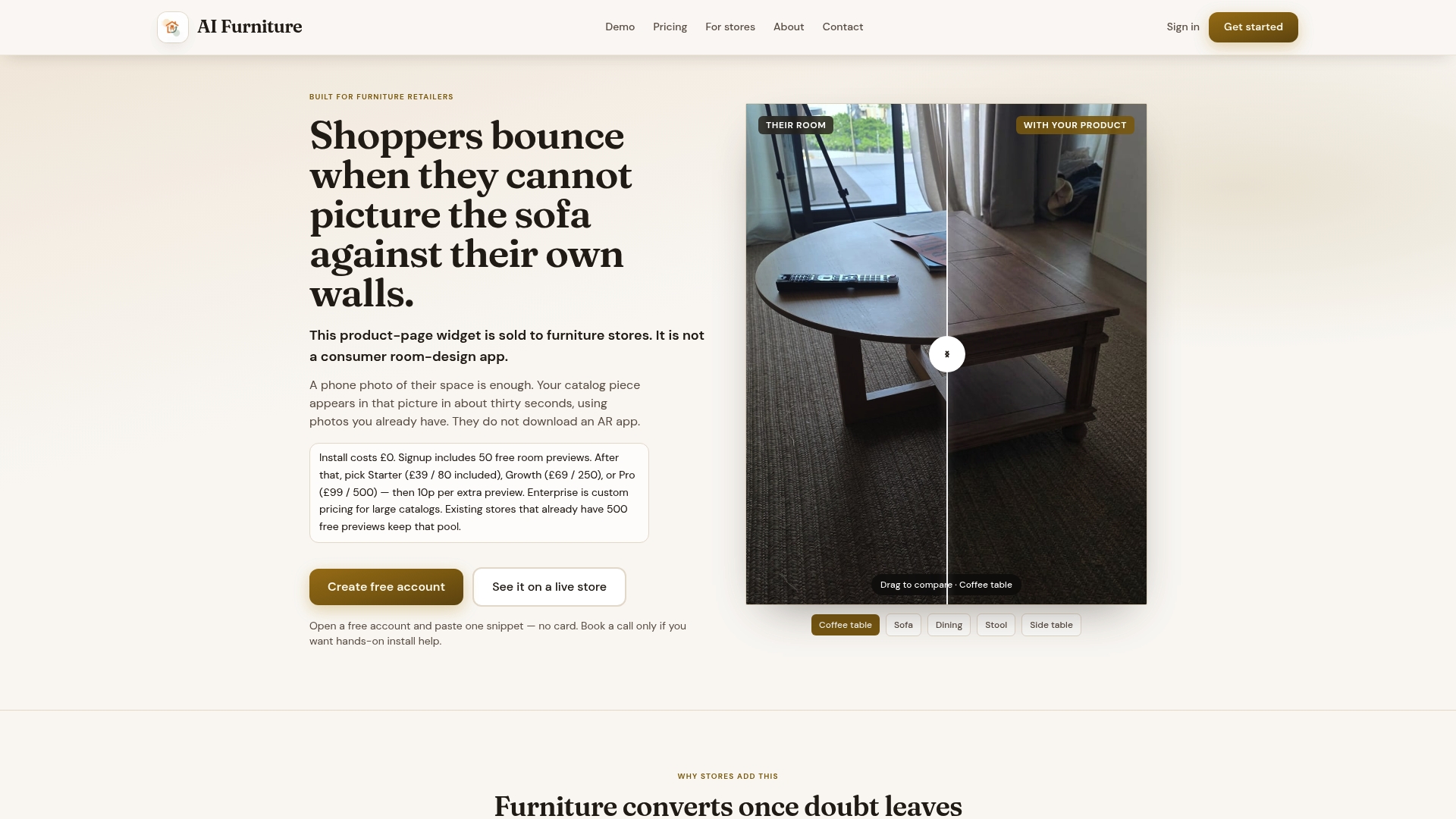
New accounts start with a set of free previews, enough to run a pilot on a handful of product pages before any spend is involved.
- Works with Shopify, WooCommerce, BigCommerce, and custom storefronts
- Uses existing product JPEGs rather than requiring new 3D assets
- Billing scales with actual preview usage rather than a flat fee regardless of traffic
Setup carries no fee, and additional previews beyond a plan's allowance cost 10p each. See full plan details on the pricing page, or run the universal demo on one of your own product URLs to see the compositing in action before you commit to anything.
Sources
For teams wanting to check these recommendations directly: web.dev's guidance on loading third-party JavaScript and its embed best practices article cover the performance and data-handling patterns referenced above. Shopify's theme app extension documentation covers the Shopify-specific integration steps, and the ICO's guidance on data protection by design is worth reading before finalising any DPA.
- Web
- Theme app extensions | Shopify developer docs
- GDPR for Images: Compliance Overview for Visual Data Protection - GDPR Local
FAQ
Can shoppers use a room preview widget without downloading an app?
Yes. A photo-compositing widget runs entirely in the browser: the shopper uploads a room photo on the product page and receives a composited preview without installing anything.
How long does a photo compositing preview take to generate?
The process typically takes around 30 seconds from upload to a returned preview, which is why a visible progress indicator matters for the user experience.
Do I need a Data Processing Agreement for a room preview widget?
Yes, because uploaded room photos generally count as personal data. A written DPA specifying retention periods and technical safeguards is standard practice, as outlined in web.dev's embed guidance.
Will a room preview widget slow down my product pages?
It can, if loaded carelessly, but facades, async loading, and sandboxed iframes keep the impact limited, as described in web.dev's third-party JavaScript guidance. Measuring with RUM and Lighthouse before and after launch confirms the real effect on your pages.
What does AI Furniture Solutions charge for extra previews beyond my plan?
Extra room previews cost 10p each on top of your monthly plan allowance, with no setup fee. Full plan pricing is listed on the AI Furniture pricing page.