Use Theme App Extensions for anything a shopper interacts with, and use GitHub integration for version control of the theme code itself. That pairing keeps merchants upgrade-safe and gives developers real branch discipline. App blocks and app embeds cover the vast majority of feature integrations without touching Liquid; reach for Custom Liquid or legacy script injection only when a theme genuinely lacks block support, and treat that as a stopgap, not a plan.
TL;DR:
- Use app blocks for features that need to be positioned within specific sections, while app embeds are suitable for site-wide overlays or tracking pixels.
- Connecting a theme to GitHub sync automatically commits live theme changes back to the repository, requiring careful branch and permission management.
- Limit your theme to Online Store 2.0 themes with proper JSON structure and ensure the theme includes the
{% content_for 'blocks' %}tag to support app blocks.- Activate app embeds manually under theme settings after installation, and guide merchants to do so with deep links during onboarding.
- Perform local previews and cross-template testing before deployment to prevent integration issues, especially with legacy themes or poorly structured repositories.
Table of Contents
- Getting started with Shopify theme integration
- Theme app extensions: app blocks vs app embeds
- How the GitHub integration actually syncs your theme
- Adding app features to a theme without breaking it
- Preview, test, and deploy without guessing
- Best practices and fixing common integration problems
- A practical example: a room visualiser as an app block
- Where developers should focus in 2026
- Trial the widget before you commit to it
- Official docs and dev resources worth bookmarking
- Sources
- FAQ
Getting started with Shopify theme integration
Before connecting anything, confirm the theme is built on Online Store 2.0. Vintage themes (anything pre-2.0) won't support app blocks or embeds properly, and you'll waste hours chasing a problem that's actually a platform limitation.
Run through this checklist first:
- Confirm the theme is Online Store 2.0 compatible and check its JSON template structure.
- Verify staff or collaborator permissions include theme editing and code access.
- Install the Shopify GitHub app from the Shopify App Store and grant it repository access.
- Check the repository folder layout matches the standard Shopify theme structure. A theme must mirror the default Shopify theme folder layout to connect at all, which typically means a buildless theme or one that's already been through any necessary build transformation.
Once that's confirmed, the connect flow itself is short:
- Go to Online Store > Themes.
- Click Add theme, then Connect from GitHub.
- Select the repository and the branch you want to sync.
- Confirm the connection and check the theme appears correctly in your theme library.
Skip step one and you'll find out the hard way, mid-deploy, that your theme can't take app blocks at all.
Theme app extensions: app blocks vs app embeds
App blocks and app embeds solve different problems, and mixing them up is the most common mistake developers make early on.
App blocks sit inline, inside a section, wherever a merchant drags them in the theme editor. Think a size-guide widget dropped into a product description, or a review carousel placed between images and the add-to-cart button. They pull from dynamic sources, so a block can read live product or customer data without a custom API call.
App embeds work differently. They're global or page-level additions, things like a chat bubble, a tracking pixel, or an overlay that has to appear regardless of which section a merchant is using. Embeds render outside the normal block flow and often carry scripts that need to load site-wide.
Both live under Theme App Extensions, which means neither requires editing a single line of theme Liquid. That distinction matters more than it sounds: injecting a <script> tag directly into theme.liquid used to be standard practice, and it's exactly what leaves broken code behind when a merchant switches themes.
- App blocks: inline placement, dynamic sources, merchant-repositionable.
- App embeds: global scripts, overlays, deactivated by default after install.
- Both: editable entirely from the theme editor, no code access needed by the merchant.
Pro Tip: If you're deciding between the two, ask whether the feature needs to appear in a specific spot a merchant controls (block) or needs to run everywhere regardless of layout (embed). Most support tickets trace back to picking the wrong one.
How the GitHub integration actually syncs your theme
The sync is two-way, and that surprises a lot of developers the first time they use it. Connect a branch to a theme, and any edit made in the Shopify admin's theme editor gets committed straight back to that branch. There's no toggle to make it one-directional. Files in your connected repository update automatically every time someone changes something in the live theme, whether that person touched GitHub or not.
That has real consequences for how you structure repositories:
- Keep a dedicated branch for the published theme and never let junior staff edit it live in the admin unless you're prepared for those changes to land in your commit history automatically.
- Use separate feature branches for development work, and merge deliberately rather than connecting every branch to a preview theme.
- Reserve a staging branch for themes you're testing but haven't published, so accidental admin edits don't pollute your main branch.
- Reconnecting a theme to a different branch later requires care. Shopify treats it as a fresh sync, so uncommitted changes in the old connection can get lost.
Repository access follows your GitHub organisation's normal permission rules, so lock down who can push to the main branch before you connect anything client-facing.
Adding app features to a theme without breaking it
Most of this happens through the theme editor, not the code editor, which is exactly the point of extensions.

To add an app block, a merchant opens Online Store > Customize, clicks Add block inside a section, and finds your app listed under the Apps category in the block picker. No manual code required.
App embeds work differently, and here's where developers often lose points with merchants: embeds are deactivated by default after installation. If you don't guide the merchant to Theme > App embeds and switch it on, they'll assume your app is broken. Build a deep link straight into your onboarding flow that drops the merchant into the theme editor's app embeds panel, ideally pre-filtered to your app.
- Add app blocks via the block picker under Apps in any section.
- Activate embeds manually under Theme settings > App embeds, per market if needed.
- Use Custom Liquid blocks only as a fallback when the merchant's theme lacks full block support.
- Check theme compatibility against the specific theme's
{% content_for 'blocks' %}tag before assuming your extension will render.
Pro Tip: Put the embed activation deep link in your App Store listing screenshots, not just your welcome email. Merchants who skip onboarding emails still see the listing when troubleshooting.
Preview, test, and deploy without guessing
A short, repeatable QA pass catches most integration failures before a merchant ever sees them.
- Run
shopify app devlocally to preview your extension with hot reload, using the--themeflag to pick a specific development store theme. - Add the block or embed in the Shopify CLI's preview link, opened in Chrome, and confirm it renders as expected.
- Save the change, then check
settings_data.jsonin the theme's source to confirm the block's settings were written correctly. - Confirm the commit landed in GitHub if the theme is connected. If it didn't sync, something's wrong with the connection, not your extension code.
- Test across templates (product, collection, page) and across any configured markets, since app embeds can be set per market.
- To roll back, deactivate the embed or remove the block from the editor. Disconnecting GitHub entirely should be a last resort; it breaks the version history tie to that branch.
Best practices and fixing common integration problems
Legacy Asset API and ScriptTag injections are the usual source of trouble. They leave what's often called ghost code: scripts and snippets that persist in a theme's files even after an app is uninstalled, because nothing has ever cleaned them up. Migrating to theme app extensions removes that risk entirely, since extensions never touch theme code in the first place.
A few limits catch developers out:
- Themes cap out at roughly 300 total blocks; heavy page builders can hit that ceiling faster than expected.
- Schema definitions have their own constraints. Malformed schema is the single most common reason a block fails to appear in the editor.
- If app blocks won't render at all, check whether the theme is missing the
{% content_for 'blocks' %}tag. Some older or heavily customised themes strip it out without realising the consequence.
Pro Tip: Audit settings_data.json and theme.liquid for old ScriptTag remnants before you migrate. Cleaning that up first prevents duplicate scripts loading twice, once from the ghost code and once from your new extension.
When a theme fails compatibility checks, contact the theme's author before assuming your extension is at fault. Third-party themes vary wildly in how faithfully they implement Online Store 2.0 standards.
A practical example: a room visualiser as an app block
A furniture retailer wanting shoppers to preview a sofa in their own living room doesn't need a 3D model pipeline. The same extension model applies: expose the visualiser as an app block on the product template, so it sits inline near the add-to-cart button, or as an app embed if it needs to appear as a floating trigger across every product page.
The Aifurniture widget follows exactly this pattern. It composites a shopper's uploaded room photo with the retailer's product image, without a 3D asset or app download on the shopper's side.
- Developers add the block's schema settings for image source and preview trigger text, then deep-link merchants straight to the block picker post-install.
- Configure per-market visibility if a retailer sells the same catalogue under different storefronts.
- Merchants get a limited number of free previews to test the widget's fit before committing to paid usage, allowing for a practical comparison against existing product photography.
- Fewer size-and-fit doubts at checkout tend to mean fewer returns, the core problem the widget is built to solve. Retailers can run their own comparison using the Shopify furniture visualiser.
Where developers should focus in 2026
Extension-first development isn't optional anymore. It's the difference between an app that survives a merchant's next theme change and one that quietly breaks it. The unglamorous work, deep-linking merchants straight to app embed activation, keeping scripts lightweight, is what actually moves support ticket volume.
If I had to pick one underrated lever, it's telemetry. Most developers instrument their backend and ignore whether a merchant ever activated the embed at all.
— Michael
Trial the widget before you commit to it
There are other ways to solve the "will this fit my room" problem, static lifestyle photography, full 3D modelling pipelines, dedicated AR apps, and each comes with its own setup cost and maintenance burden. Aifurniture takes a different route: no app download for shoppers, no 3D asset library to build and maintain, just a photo composite generated from the product images a retailer already has.
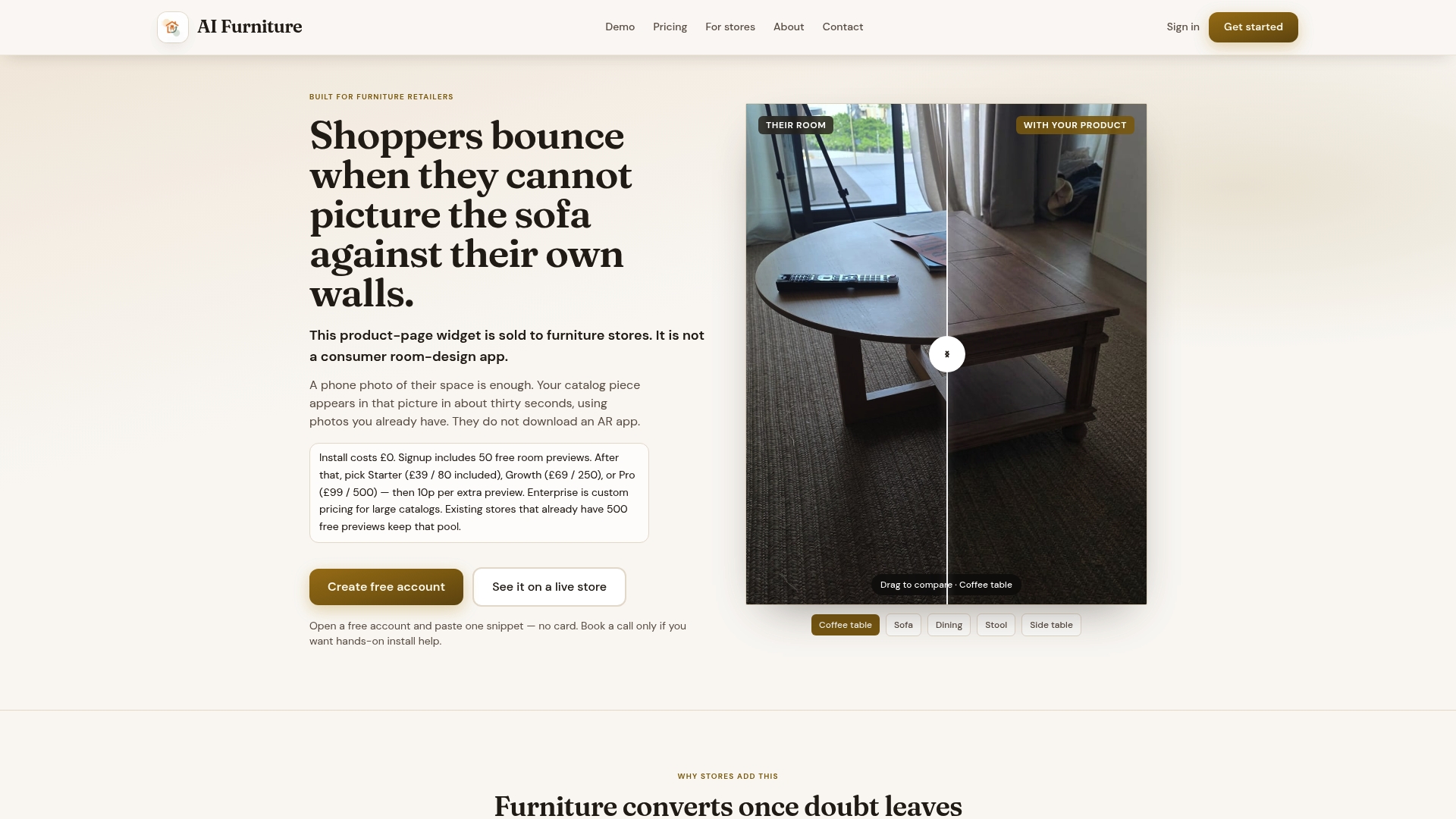
The practical way to judge it is to run it against your own catalogue. The universal demo lets you bake off the widget on any product URL, and the merchant bake-off option runs it directly on photos you already have on file. Both use the same 500 free previews every new account starts with, so there's no cost to seeing whether it changes conversion on your own product pages before you touch a paid plan. If your catalogue is large enough to need volume pricing, get in touch about an enterprise setup once the trial numbers make the case for you.
Official docs and dev resources worth bookmarking
Keep these open while you build:
- Theme app extensions documentation for the full app block and embed reference.
- Shopify GitHub integration guide for sync behaviour and repository requirements.
- App blocks and theme architecture for the
content_for 'blocks'requirement. - Shopify Schema Helper for validating block schema before you ship it.
- Get JSON-LD schema tool for structured data that pairs well with theme-level SEO work.
Sources
FAQ
Is selling Shopify themes profitable?
Theme design can be profitable for developers who build once and sell repeatedly through the Shopify Theme Store, though income varies enormously with marketing reach and theme quality. It's a separate business from theme integration work, which is paid client or in-house development rather than a product sale.
Can you make $10,000 a month on Shopify?
Some merchants do, typically through a combination of a well-converting theme, reliable apps, and low return rates, but revenue depends far more on product and traffic than on theme choice alone. A theme integrated correctly, with fast-loading app blocks rather than legacy scripts, removes friction that would otherwise cap growth.
What are the best Shopify themes for app integration?
There's no single best theme, since the deciding factor is Online Store 2.0 compatibility and clean schema, not brand recognition. Check that any theme you're evaluating includes the content_for 'blocks' tag and hasn't stripped it during customisation.
How much does Shopify take from a $20 sale?
Shopify's transaction fees depend on your plan and payment method, and vary by region, so the exact transaction fee isn't fixed across all merchants. Check your specific plan's fee schedule in the Shopify admin billing settings rather than assuming a flat rate.
Should I use app blocks or app embeds for a visual widget like a room previewer?
A widget shoppers interact with directly on the product page, like a room visualiser, works best as an app block placed inline near the add-to-cart button. Use an app embed instead only if it needs to appear as a persistent element across every page regardless of layout.